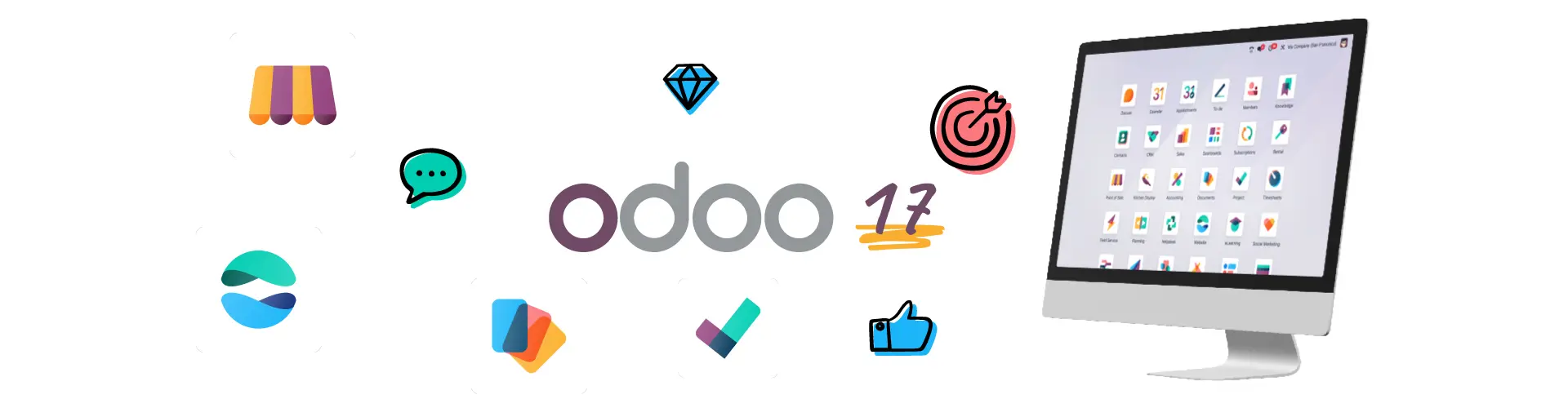
Three things make Odoo 17 navigable: the app switcher behind the grid icon in the top-left corner, the command palette on Ctrl+K that jumps to any app, menu or recent record, and the view switcher at the top right of every screen that turns the same data into a list, kanban board, calendar, pivot or graph. Learn those three and every app in Odoo 17 works the same way.
The most noticeable change in Odoo 17 is the refreshed interface itself: a lighter top bar, flatter buttons and more consistent spacing, with every installed app behind the grid icon in the top-left corner rather than on a home screen you have to go back to.
Benefits:
- Faster access to apps: the grid icon is on every screen, so you never go back to a home screen first
- More room for the records themselves, because the chrome around them is thinner
- The same furniture in every app: breadcrumb on the left, search in the middle, view switcher on the right
It matters most to people who live in two or three apps at once — Sales and Accounting, say — where switching used to mean a trip back to the app home screen.
Faster Navigation with the App Switcher
The app switcher has also been revamped in Odoo 17:
- Click the grid icon in the top-left corner to open all installed apps
- Search and pin frequently used apps
- Admins can manage app access directly from this menu
Pro Tip: You can also hit Ctrl + K to open the global command palette for even quicker navigation.
Mobile-Friendly and Responsive Design
Odoo 17 brings major UI responsiveness improvements:
- Menus collapse neatly on tablets and phones
- Touch-friendly buttons and fields
- POS and CRM apps feel more like mobile-native tools
If your team is often on the move (sales reps, field service, delivery), they'll notice the improved usability instantly.
Workspaces and Views: List, Kanban, Calendar & More
Most Odoo apps support multiple workspace views:
- 📋 List View: For data-heavy modules like Accounting, Inventory
- 🧱 Kanban View: Great for CRM pipelines, Projects, and Tasks
- 📆 Calendar View: Used in Time Off, Appointments, and Meetings
- 📊 Graph View: Quick visual reporting across apps
You can switch views with a single click — and Odoo remembers your preferred layout.
Power User Tips and Shortcuts
Once you're comfortable with the interface, try these:
- 🔍 Use the global search bar (top center) to find records across all apps
- ⭐ Bookmark frequent records or reports by clicking the star icon
- 🔧 Enable "Developer Mode" to access technical options and debug tools
- ⚙️ Adjust personal settings like language, timezone, and theme from your user profile
Odoo 17 is designed to work the way you do — the more you personalize it, the faster you'll work.
Upgrader's Note: What's Different from v16 or Older?
- 🧭 The apps home screen is no longer where you start — the grid icon reaches every app from anywhere
- 🕛 The command palette (
Ctrl + K) jumps straight to an app, a record or an action - 🎯 More consistent UI across desktop and mobile
- ⚡ Better load performance and screen transitions
If you're upgrading, prepare your team for the UI change — but expect faster adoption thanks to the modern layout.
Conclusion
Odoo 17 delivers one of the cleanest and most efficient user interfaces in the ERP world. Whether you're new or upgrading, the new navigation system, responsive design, and shortcut options make daily work more productive — and more enjoyable.
Want to train your team on Odoo 17's new UI? We offer onboarding workshops and walkthroughs — tailored to your business.
Questions we get asked
What does Ctrl+K do in Odoo 17?
It opens the command palette. Typing there searches apps, menu items and records you have opened recently, and the palette also lists the shortcuts available on the current screen, such as creating, saving or discarding a record. On a Mac the same palette opens with Command+K. It is the quickest way to move around without the mouse.
How do I turn on developer mode in Odoo 17?
Open Settings, scroll to the bottom of the General Settings page and click to activate the developer mode; adding ?debug=1 to the URL does the same thing. Developer mode adds the debug menu in the top bar, shows technical field names in tooltips, and reveals the technical menus underneath Settings.
Can I save the filters I use every day?
Yes. Any combination of filters and groupings built in the search panel can be stored as a favourite, marked as the default for that screen so it applies the moment you open it, and shared with other users. That is usually faster than rebuilding the same search, and it works on every list, kanban and pivot view.
Does Odoo 17 work on a phone?
The web client is responsive and works in a mobile browser, and Odoo publishes iOS and Android apps that wrap the same interface. Data-heavy screens such as pivot tables and planning Gantt charts are still easier on a desktop, but everyday work - pipeline, approvals, attendance, field jobs - is built for the small screen.
What changes for users upgrading from Odoo 16?
The records, menus and reports are the same; what changes is the shell around them - a refreshed palette, a reorganised app switcher and more consistent buttons between apps. Retraining is usually a walkthrough rather than a course. The part worth testing before upgrading is any custom module with views of its own.